(Revised 1/17/2026 to emphasized the use of the system default printer preset)
Welcome back!
Here’s yet another swing at the Presets issue by Don Quixote. Next year, I’ll get a life (maybe…)
This is a followup to my first posting, which has all the technical details, here at https://valleau.art/blog/printer-presets-no-longer-working-right/
My presets have (knock on windmills) been OK for a few weeks now. The work for this post was done on a Mac Studio M2, running Tahoe 26.1 on Dec 9, 2025.
Let’s face it: Apple’s implementation of the “split presets” (print jobs and custom jobs) back in Ventura was “half-baked” at best, and has caused a few years of pain now, at least for some users. Unfortunately, the thing is still half-baked, and the bugs and poor design remain into Tahoe. What I have here is therefore not a fix, but a work-around, that will (at least in my own experience) allow you to create and use printer presets without corruption. It takes some setup, and a full acceptance of Print/Custom, along with a caveat or two.
Here’s the gist of it: Apple completely controls the printing path and the saving of presets. That is done from an Xcode library that is supplied to developers. That library has embedded errors, and cannot be fixed by anyone but Apple. In other words, the Apple software is broken. A lot of the things that used to work no longer work and give unexpected results. However, there is a safe path through this minefield. That’s what this post shows: the path of least failure. Deviate at your own risk. (If you want to see how to make it break, scroll down to MAKING A NEW PRESET / Notes / 3, below.)
(I should note that everything here is based solely on my own individual experience. If something is wrong, there’s no one to blame but me.)
But at least presets are viable again.
Good Luck!
Tracy
—————————
What I suggest and did:
First: why not nuke and pave – reset the entire printing system? Well, that completely removes ALL your printers and you have to start over from scratch. I personally have 3 different label printers; three different full color printers and three Piezography B&W printers. Also a laser printer and a multifunction.
Starting from scratch (especially with the 3 quadtone Rip printers) would be a massive effort, reinstalling 9 different printers, and without any guarantee that all that time spent would actually fix anything.
So I opted to fix only the printer(s) where the presets kerfuffle actually shows up.
—
Overview:
1) reset all the default printer settings using CUPS.
2) delete current settings
3) create each and every new Print Job preset begining with the Default Settings and NOT with an existing preset.
4) if you alter a preset and want to save it for future use, you MUST use a CUSTOM preset.
Details:
Here’s what has worked for me:
FIRST:
If you have a load of presets for your printer, take a look at them, make screenshots or otherwise record them because you’re going to remake them all over again.
STEP ONE:
Visit ~/library/preferences/
and find “com.apple.print.custompresets.forprinter.[name].plist” (where [name] is your printer.
(Optional, but wise) Save those current presets by zipping up that plist, and moving it somewhere else.
Trash the plist itself.
STEP TWO:
CUPS (Common Unix Printing System) is here: in your browser at http://localhost:631. The login is your own login to your mac, name & password. If you are asked to activate the web interface, launch the Terminal app, and paste in this phrase, “cupsctl WebInterface=yes” and hit the enter key. I suggest you just copy/paste the phrase without the quote marks.
Select “printers” from the meu bar and from the list click on yours. From the resulting Administration menu, choose “set default options”.
Here’s your chance to set your most commonly used settings. I suggest you do that. The Default Settings will become the basis of all your subsequent presets, so you can save yourself time by having it default to your most commonly used preset options. This will leave you with less to do when you create a new one. Note that the list has about 60 options most of which you will not need, and is several screens long, so be sure to go all the way through it, because the save/update button “set default options” is at the very bottom.
I suggest that you do NOT leave the main ones, such as paper, blank. Put in something that you use a lot and will help you quickly see that you, in fact, selected the default preset.
Once you have saved your new default settings, you can exit. (Before you leave, it wouldn’t hurt to do a similar ‘refresh’ for each of the printers listed.)
(Why do this? It’s possible that after years of use, and various iterations, the saved setup may have become corrupted for any number of reasons. Can I swear this CUPS rewrite is really necessary? Nope. But as a retired programmer (“been there, done that”) I can say that it’s quite possible. Either way, it certainly won’t hurt to have fresh, clean files behind the scenes. Upshot: just do it. It’s only a one-time thing.)
STEP THREE:
Reboot your computer. Load your printing software and check to make sure all the previous presets are gone, and you have only “Default Settings” at the top of the presets popup menu. If you still have presets, you trashed the wrong plist. Put it back and find the right one.
When you see an empty presets list you can empty the trash.
MAKING A NEW PRESET
Notes:
1) it was necessary for my printers to be turned ON for this process. With my 3880 QuadTone RIP printer, if it was off, the setting did not “stick’.
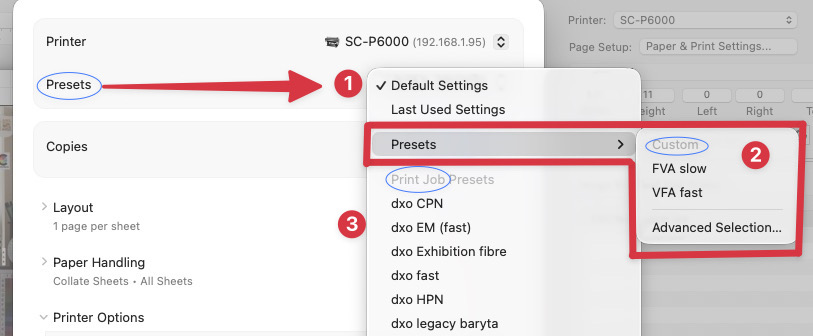
2) Further: I made the presets by accessing “Page Setup: Paper & Print settings…” (above item #2, in the image above) and NOT by hitting “Print” to bring it up.
3) Finally, I always use “OK” and never the “Cancel” button inside the Print window – specifically within the “printer options” section of that print dialog. “Printer options” offers color matching, printer settings, roll paper settings, advanced paper control, and HDD settings. Each one of these brings up a set of choices that are either confirmed with the “OK” button or (supposedly) unchanged using the “Cancel” button. You know: the very things you want a preset for in the first place! (This is entirely internal to Apple, and NOT handled by any application. It is broken. The “Cancel” button will “magically” alter your presets! DO NOT SELECT “CANCEL.” If you want to cancel a change you made, you need to accept the alteration anyway, by hitting the “OK” button, and then go back in again and change the setting back to what you want. Again: “Cancel” will corrupt your settings.
4) Pay attention. Always check that your desired presets are correct before choosing to save your preset. You can be pretty sure that if you accidentally hit the “Cancel” button to back out, things will NOT be OK!
FROM NOW ON, you will use that systerm Default Settings preset as your starting point for all new PRINT JOB presets. This method creates a pristine new PRINT JOB preset each time, based on the Default Settings you created in CUPS for your printer.
I’ll say it again because it’s mandatory: you will use that systerm Default Settings preset as your starting point for all new PRINT JOB presets.
To make this easy, you should set up your printer to always return to the DEFAULT preset, and NOT to “last used”.
Why use PRINT JOBS? Because those are the base from which you make your CUSTOM JOBS.
Let’s say you have 3 papers: Velvet Fine Art (VFA), RAG Photographique (RP) and Hot Press Natural (HPN). You would select the Default Settings preset and from there set up a preset with your chosen ink, bit-depth, print speed, DPI and so on for (let’s say) VFA. Next save it as a PRINT JOB named “VFA” for just the printer involved.
Now go back and load up “Default Settings” again. Make the same changes for RP, and again save it as a PRINT JOB, named (say) “RP”.
For the third paper, go back and yet again load up “Default Settings” and create a new PRINT JOB named “HPN.”
Now you have three print jobs showing in your main presets list for your chosen printer.
Since the whole point of presets is your convenience, so lets make two variations of (say) the VFA paper: one for quick sanity-check prints, and one for the final print that will be hanging in MOMA.
Load up the VFA print job you just created. Change it so that it’s 1440 and bidirectional. Go back to the presets menu and choose “save current settings as preset…” (just like you did above to make the PRINT Jobs) but this time choose to save it as a CUSTOM JOB. Make sure the name is clear to you, such as “VFA Fast.” (I’d also choose to make it for the given printer, instead of “all printers”. YMMV.)
Go back and reload the VFA PRINT JOB again, and alter it for 2880 and unidirectional. Save that as a CUSTOM JOB similarly, but name it “VFA Slow”.
You now have three presets for your printer when using VFA paper, one in the main menu (the JOB preset) and two in the “presets/presets/custom” sub menu.
TO USE THESE:
Say you want a speedy test print, from the popup menu “presets/presets/custom” and choose your “VFA fast”. (There is a “gotcha” here however. It iis physically possible for you to select one PRINT job and also use a CUSTOM job from another paper. THIS IS ALWAY A MISTAKE! Your printer presets must always start out as the system DEFAULT. ONLY by starting in that state will you be able to make a single selection. You may choose one of the JOB presets, as in the past, OR you choose one of the CUSTOM (from presets/presets/custom) which will ALSO load the proper PRINT JOB from which it was derived.)
Side note:
Before Apple split presets into PRINT JOBS and CUSTOM presets, we would make new presets by simply changing an existing one, and save it with a new name. It’s not that simple any more.
If you want to make a variation of an existing print preset, load up whatever you want to use as the base (say Velvet Fine Art) and make your changes, but then (as just explained) you >>MUST<< save that as a CUSTOM Preset, NOT a PRINT JOB preset! (My experience with taking an existing PRINT JOB preset, and creating a variation of it, and then saving that out as a PRINT JOB again is -wrong-, and leads to corruption. It appears that the Apple OS -knows- it’s a variation (aka CUSTOM) and saves different data, which when mistakenly saving as a PRINT Job instead, may result in a corrupted preset. See previous post, linked at the start of this post.)
My presets are generally on a per-paper basis, with perhaps a set of different paper sizes (VFA 8×10; VFA 13×19 etc) or print density/passes (1440 bidirectional vs 2880 unidirectional) or roll vs sheet, etc. Those variations would be saved as a CUSTOM Preset.
My presets also apply specifically to one printer. My label printers have no use for fine-art printer presets, and I don’t want to wade through them when they don’t apply.
WHERE ARE MY NEW PRESETS?
If you are using CUSTOM Presets, you must remember that they ARE NOT LISTED directly in the presets popup list. That list is for PRINT JOBS. If you have CUSTOM presets, they will be listed in the -submenu- “PRESETS” in the main presets popup, above the print jobs (aka presets/presets/custom.)
Here’s the SUMMARY
1) visit CUPS and make a new Default Settings for your printer.
2) visit library preferences and delete the old presets.plist
3) reboot
4) use “Default Settings” to create individual PRINT JOBS for each paper, and for your specific printer.
6) using that PRINT JOB create variations and save each as a CUSTOM JOB.
Repeat steps 4 and 5 to make new presets.
Note: a PRINT job should never be saved on top of a previous one, with an eye to replacing it. That worked fine for years (decades?) but not so much anymore. Now you need to make a new one from your Default Settings.
And… when reviewing settings during use, click the OK button to dismiss the dialog box. Do not click “Cancel” as it may not be safe to do so. (Myself and others have experienced a “cancel” click causing unexpected results.)
________________________________________________________________________
One Last Thing:
How did Apple screw this up? I have a hypothesis, and it’s only and no more than that – my best guess.
The basic mistake was to allow a what should have been a CUSTOM JOB to be saved as a PRINT JOB. That is, a variation on an existing PRINT JOB >>needs<< to be saved as a CUSTOM JOB. It turns out that the OS knows when you’re “subsetting” a PRINT JOB. Knowing that, they should not offer the ‘save as Print Job’ button if it’s really a subset of the main job that you are saving. That may, in the current state of things, yeild a corrupted print job, with cascadingly serious results.
At least that’s what it looks like to me as of now… but I’ve been wrong before. (in 1957, I think) 😉
This has worked for me, and I hope it will do the same for you.
Finally, my thanks for Joseph Holmes and Roy Harrington for their interest, encouragement, advice and unflagging patience & courtesy. We continue to work on it to this day.
Thank you for working through this and laying it out for us.